Regular vs Extended licence: which one do you need?
One website or many? A simple way to choose the right software licence before you buy, with examples.
Create the database, upload the zip, run the web installer and secure the site. A plain-language checklist for any PHP + MySQL script.
Most PHP scripts you buy on Envato or Codester install the same way. This checklist works for our scripts and for most others.
In cPanel open MySQL Databases. Create a database, create a user with a strong password, and add the user to the database with All privileges. Note the database name, user name and password.
Open File Manager, go to public_html (or a sub-folder), upload the zip and choose Extract. Make sure the files end up directly in the folder, not inside an extra folder.
Open your domain in the browser. A good script opens its installer automatically, checks your server and asks for the database details and an admin password.
If you bought one of our products, open a support ticket with your purchase code and we will help, or choose the installation plan and we will do it for you.
One website or many? A simple way to choose the right software licence before you buy, with examples.
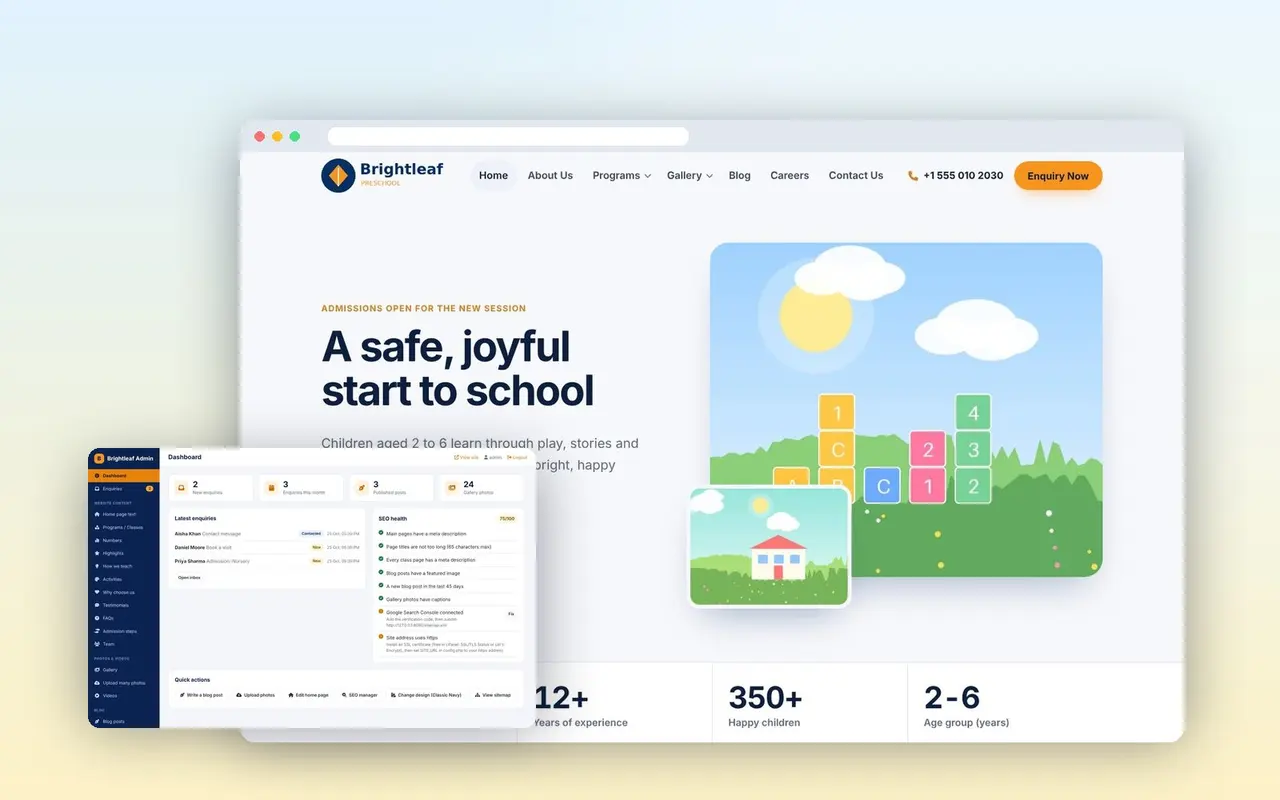
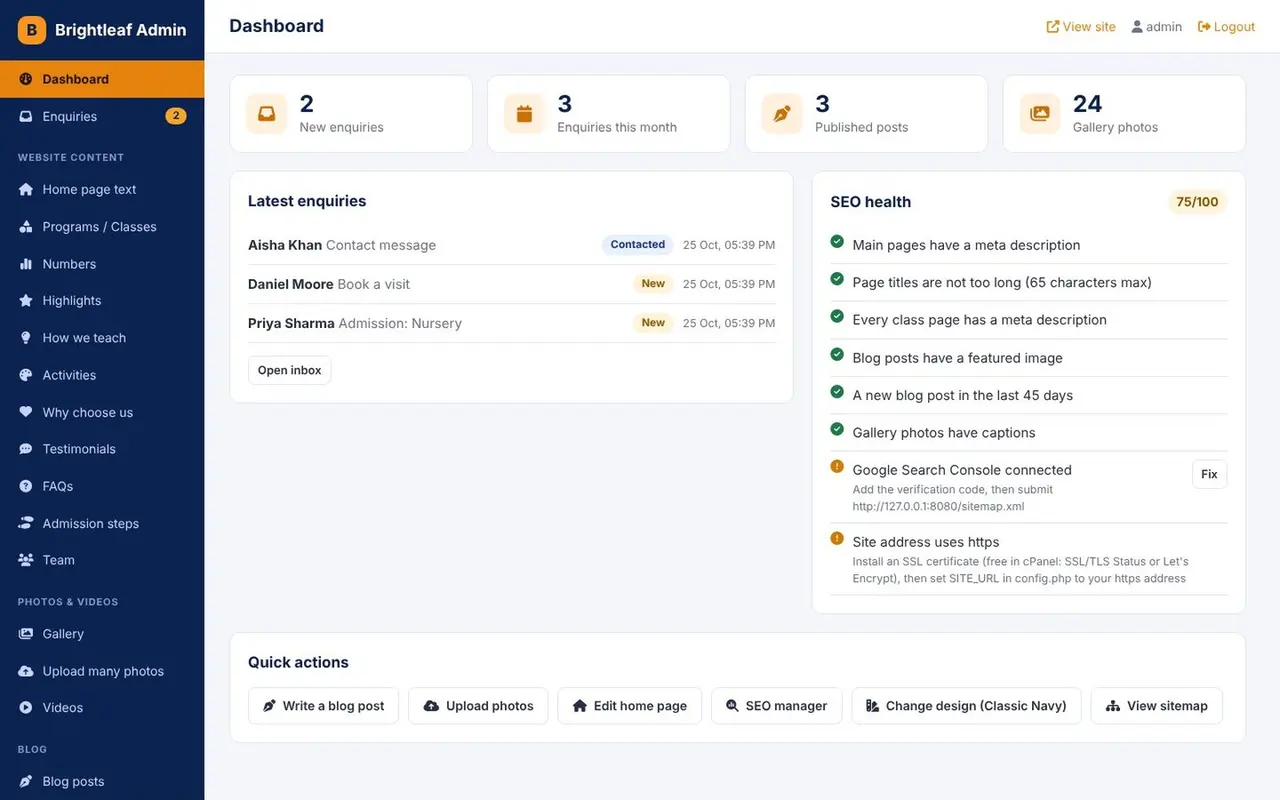
Our preschool and school website script is ready, with a web installer, five themes, full SEO control, a blog and an enquiries inbox.