
Admin panel overview
Open yoursite.com/admin/. The menu on the left is grouped into Website content, Photos & videos, Blog, SEO and Design & settings. On phones the menu opens with the ☰ button.
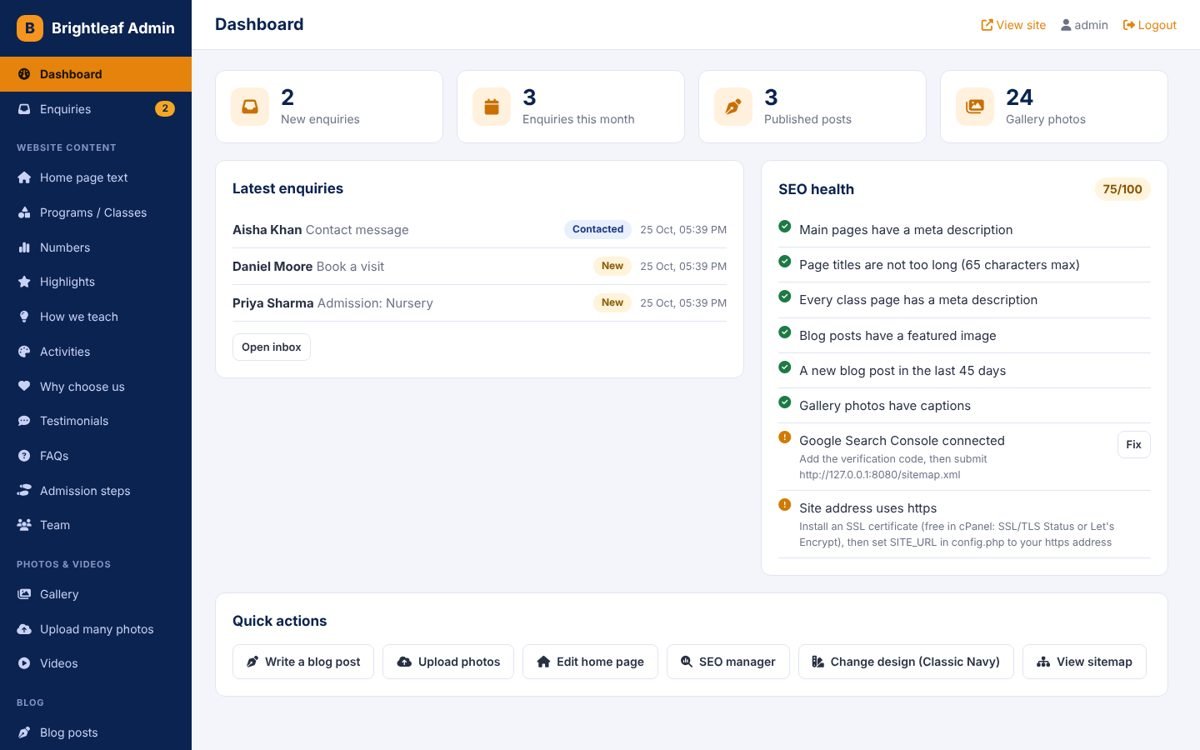
The Dashboard shows new enquiries, quick actions and an SEO health score. Each problem has a Fix button that opens the right screen.
Editing website content
| What you see on the website | Where to edit it |
|---|---|
| Home page headings, texts and main photos | Home page text |
| Numbers strip (teachers, years, children) | Numbers |
| Four small icons in the "about" block | Highlights |
| "How we teach" columns | How we teach |
| Photo tiles "Elements of learning" | Activities (tick Wide tile on about half) |
| "Why parents choose us" | Why choose us |
| Parent reviews | Testimonials (the first three shown are used) |
| Questions and answers | FAQs (also sent to Google as FAQ data) |
| About page texts, Careers roles | Site settings → About & careers |
| Admission steps on the About page | Admission steps |
| Leadership team | Team |
| Name, logo, phones, address, social links | Site settings |
Every list has Order (smaller numbers show first) and Show on website (untick to hide without deleting). Icons use free Font Awesome names such as fa-solid fa-star; the preview updates while you type.
Programs / classes
Each class has its own page, for example /play-group/. Classes appear automatically in the menu, the footer, the home page switcher and the admission form. Each class has five photos, a list of activities and its own SEO box. Add as many classes as you need.
Blog, labels and tags
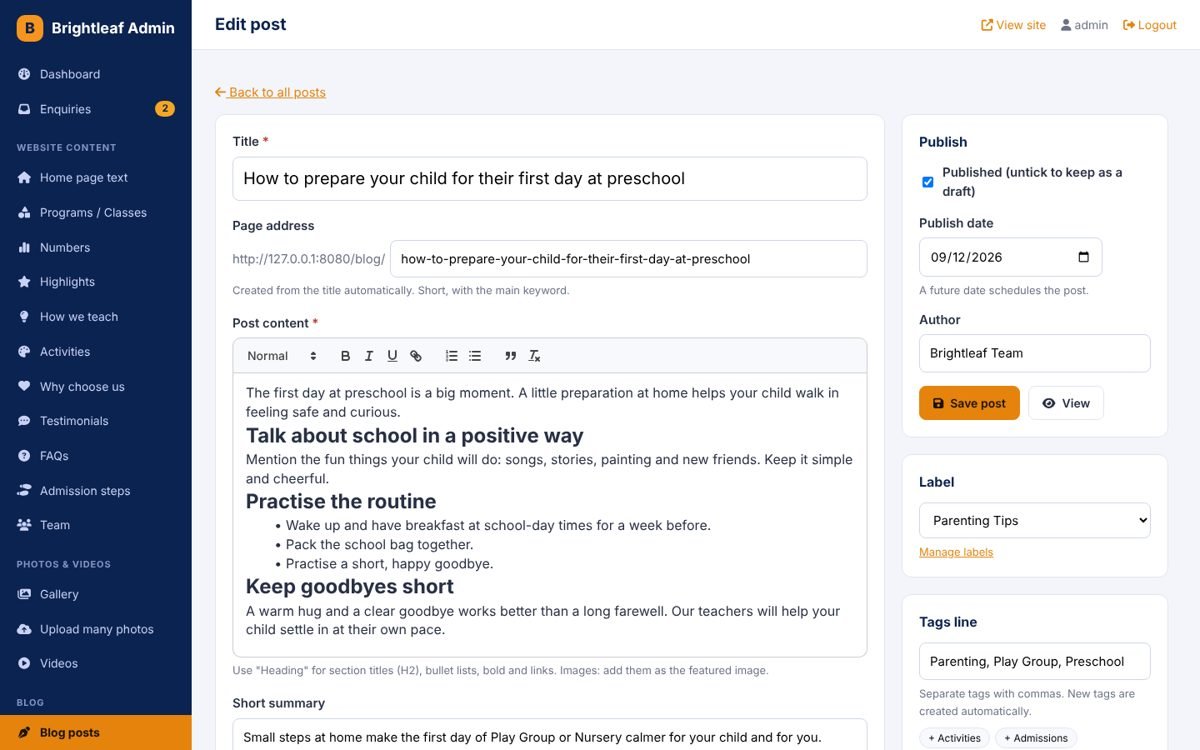
- Blog posts: write with the rich text editor (headings, lists, bold, links, quotes). Add a featured image and its description (alt text).
- Label: each post can have one label (category). Labels have their own colour, page (
/blog/category/name/) and SEO settings. Manage them in Labels (categories). - Tags line: type tags separated by commas, for example
Admissions, Kindergarten, Parenting. New tags are created automatically and each tag gets its own page (/blog/tag/name/). - Publishing: untick Published to keep a draft. A future publish date schedules the post.
- Article schema, Open Graph sharing tags and the RSS feed (
/blog/feed.xml) are added automatically.
Photos and videos
- Gallery: add photos one by one with a caption, or use Upload many photos (up to 40 at once). Tick Show on home page for the moving photo strip.
- Videos: paste a YouTube link; the video ID is taken from it automatically. The first video is shown large. Videos load only when clicked, so pages stay fast.
- Allowed image types: JPG, PNG, WEBP, GIF (max 5 MB, change
MAX_UPLOAD_MBinconfig.php). Fast WebP copies (640 and 1280 px) are made automatically when the GD extension is available.
Enquiries inbox
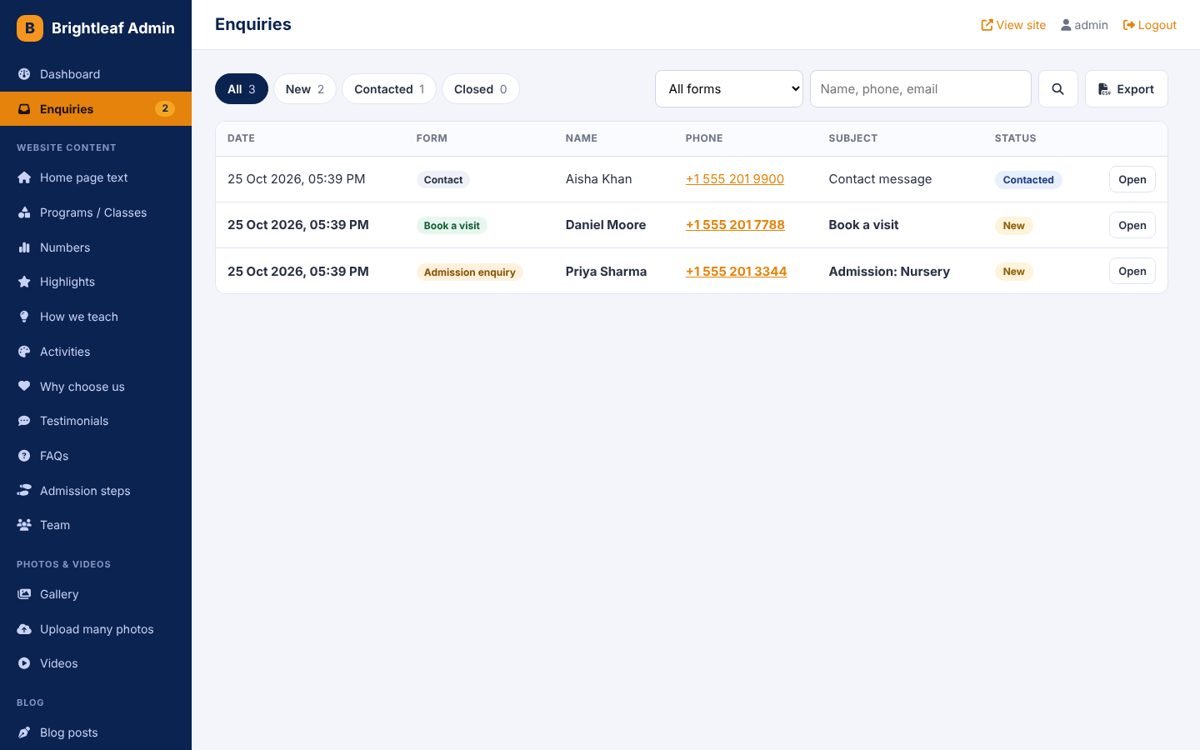
Every website form (Admission enquiry, Book a visit, Contact, Job application) lands in Enquiries. You can filter by form and status, search, add private notes, open WhatsApp with one click, download attached photos and documents, and export everything to Excel (CSV). Attached files are stored in uploads/private/, which visitors cannot open.
Spam protection: hidden spam trap, security token on every form and a 20-second limit between forms.